Assalamualaikum
Sampurasun
Hallo everybody! Now I’ll show you how to make a simple calculator using Arduino Uno, my 2nd Arduino Project. I tried to make it from Mar 1st 13.00 till Mar 4th 0.30. My head so dizzy to did it but I enjoyed it. I did with my team, they are Adinda, Airen, Dewi, and Kak Ipah.
For this project, we had to draw up some components. They will be shown below.
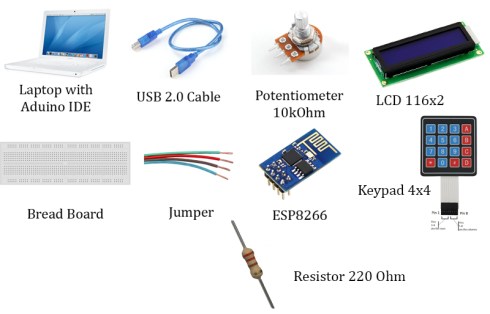
I’ll tell you how to we did this project step by step. For all our failure, I’ll show you at the last post. Hehe. You should do all in the following steps.
Step 1 : Reading a Keypad
Before I’ll make a calculator circuit, let’s try to reading a keypad presses in serial print. Using Cook Book, I can do that so awesome! Yeah! It’s so easy you know! Hmmmm. We should be careful to string up all wire which are connector between Keypad and Arduino. Wire the rows and columns from the keypad connector to the Arduino, as shown below.
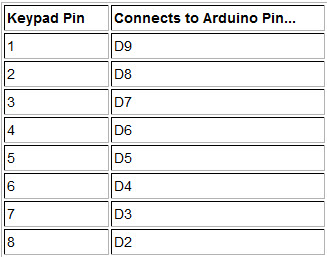
This code can be used with the series above.
/*4×4 Matrix Keypad connected to ArduinoThis code prints the key pressed on the keypad to the serial port*/
#include <Keypad.h>
const byte numRows= 4; //number of rows on the keypad
const byte numCols= 4; //number of columns on the keypad
//keymap defines the key pressed according to the row and columns just as appears on the keypad
char keymap[numRows][numCols]=
{
{‘1’, ‘2’, ‘3’, ‘A’},
{‘4’, ‘5’, ‘6’, ‘B’},
{‘7’, ‘8’, ‘9’, ‘C’},
{‘*’, ‘0’, ‘#’, ‘D’}
};
//Code that shows the the keypad connections to the arduino terminals
byte rowPins[numRows] = {9,8,7,6}; //Rows 0 to 3
byte colPins[numCols]= {5,4,3,2}; //Columns 0 to 3
//initializes an instance of the Keypad class
Keypad myKeypad= Keypad(makeKeymap(keymap), rowPins, colPins, numRows, numCols);
void setup()
{
Serial.begin(9600);
}
//If key is pressed, this key is stored in ‘keypressed’ variable
//If key is not equal to ‘NO_KEY’, then this key is printed out
//if count=17, then count is reset back to 0 (this means no key is pressed during the whole keypad scan process
void loop()
{
char keypressed = myKeypad.getKey();
if (keypressed != NO_KEY)
{
Serial.print(keypressed);
}
}
Get It? Let’s Try!
Step 2 : Using a Text LCD Display
After we knew how to reading keypad presses, Let’s try to understand how to use a Text LCD Display. You can make a series as the figure below.
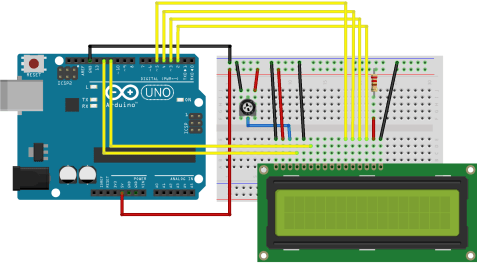
We need to connect to a 10K potentiometer to provide the contrast voltage to LCD pin3.
The followig code is modified slightly to print numbers in addition to “hello world.”
/*LiquidCrystal Library – Hello World
Demonstrates the use of a 16 × 2 LCD display.
http://www.arduino.cc/en/Tutorial/LiquidCrystal
*/
#include <LiquidCrystal.h> // include the library code
//constants for the number of rows and columns in the LCD
const int numRows = 2;
const int numCols = 16;
// initialize the library with the numbers of the interface pins
LiquidCrystal lcd(12, 11, 5, 4, 3, 2);
void setup()
{
lcd.begin(numCols, numRows);
lcd.print(“hello, world!”); // Print a message to the LCD.
}
void loop()
{
// set the cursor to column 0, line 1
// (note: line 1 is the second row, since counting begins with 0):
lcd.setCursor(0, 1);
// print the number of seconds since reset:
Lcd.print(millis()/1000);
}
Get It? Hope it’s easy for you
Step 3 : Let’s make Awesome Calculator
1st and 2nd steps help me to construct the Awesome Calculator. I just combine it and yeah I got it. I use the series below.
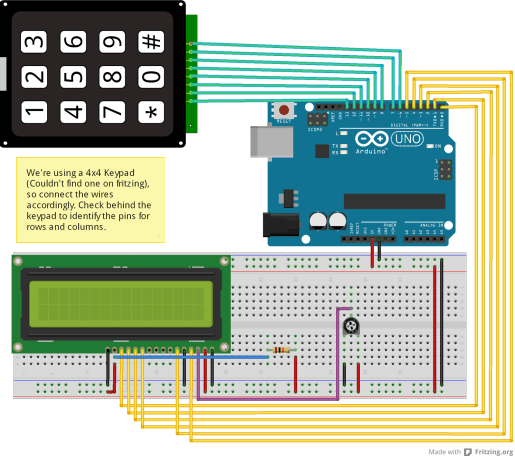
You can use the following code to run the sketch.
/*Done by Vathsav Harikrishnan
Date Started [28-03-2013]
Date Finished [27-06-2013]
> Arduino Uno
> 4×4 Dot Matrix Keypad
> 16×2 LCD (With Backlight – Optional)
> Breadboard
> Connecting Wires, Female Jumper Wires
> Resistors
> Potentiometer
Layout of 4×4 Dot Matrix Keyboard:
^
C R >
o o o o
o o o o
o o o o
o o o o
[7] [8] [9] [/]
[4] [5] [6] [*]
[3] [2] [1] [-]
[X] [0] [=] [+]
Press X to clear the screen
1 1 1 1 1 1
0 1 2 3 4 5 6 7 8 9 0 1 2 3 4 5
*——————————-*
| 2 +| <— Memory here
| | <— Cursor set here
*——————————-*
*/
#include <LiquidCrystal.h> //import lcd library
#include <Keypad.h> //import keypad library
LiquidCrystal lcd(5, 4, 3, 2, 1, 0); //lcd pins
const byte ROWS = 4; // four rows
const byte COLS = 4; // four columns
//define the keymap
char keys [ROWS] [COLS] = {
{‘1’, ‘2’, ‘3’, ‘*’},
{‘4’, ‘5’, ‘6’, ‘/’},
{‘7’, ‘8’, ‘9’, ‘+’},
{‘X’, ‘0’, ‘=’, ‘-‘}
};
byte rowPins[ROWS] = {
13,12,11,10}; //connect keypad ROW1, ROW2, ROW3, ROW4 to these arduino pins
byte colPins[COLS] = {
9,8,7,6}; //connect keypad COL1, COL2, COL3, COL4 to these arduino pins
//create the keypad
Keypad myKeypad = Keypad( makeKeymap(keys), rowPins, colPins, ROWS, COLS );
//variables declaration
boolean valOnePresent = false;
boolean next = false;
boolean final = false;
String num1, num2;
int ans;
char op;
void setup(){
lcd.begin(16,2);
lcd.setCursor(2,0);
lcd.print(“Hello World!”);
delay(2500);
lcd.clear(); //clears the LCD screen and positions the cursor in the upper-left corner.
}
void loop(){
char key = myKeypad.getKey();
if (key != NO_KEY && (key==’1’||key==’2’||key==’3’||key==’4’||key==’5’||key==’6’||key==’7’||key==’8’||key==’9’||key==’0’)){
if (valOnePresent != true){
num1 = num1 + key;
int numLength = num1.length();
lcd.setCursor(15 – numLength, 0); //to adjust one whitespace for operator
lcd.print(num1);
}
else {
num2 = num2 + key;
int numLength = num2.length();
lcd.setCursor(15 – numLength, 1);
lcd.print(num2);
final = true;
}
}
else if (valOnePresent == false && key != NO_KEY && (key == ‘/’ || key == ‘*’ || key == ‘-‘ || key == ‘+’)){
if (valOnePresent == false){
valOnePresent = true;
op = key;
lcd.setCursor(15,0); //operator on right corner
lcd.print(op);
}
}
else if (final == true && key != NO_KEY && key == ‘=’){
if (op == ‘+’){
ans = num1.toInt() + num2.toInt();
}
else if (op == ‘-‘){
ans = num1.toInt() – num2.toInt();
}
else if (op == ‘*’){
ans = num1.toInt() * num2.toInt();
}
else if (op == ‘/’){
ans = num1.toInt() / num2.toInt();
}
lcd.clear();
lcd.setCursor(15,0);
lcd.autoscroll();
lcd.print(ans);
lcd.noAutoscroll();
}
else if (key != NO_KEY && key == ‘X’){
lcd.clear();
valOnePresent = false;
final = false;
num1 = “”;
num2 = “”;
ans = 0;
op = ‘ ‘;
}
}
So simple right? I think so. However, my team and I got some failure during we did it, they are….
- LCD was getting on but the characters weren’t appearing
- LCD was getting on and the characters were appearing
- LCD was getting off!!!!
We assumed it caused
Watch this awesome video, check it out!
Reference
http://www.learningaboutelectronics.com/Articles/Arduino-keypad-circuit.php
https://www.arduino.cc/en/Tutorial/HelloWorld
http://www.vathsav.com/post/arduino_calculator.html
 Yuni CitrawatI
Leave a comment